
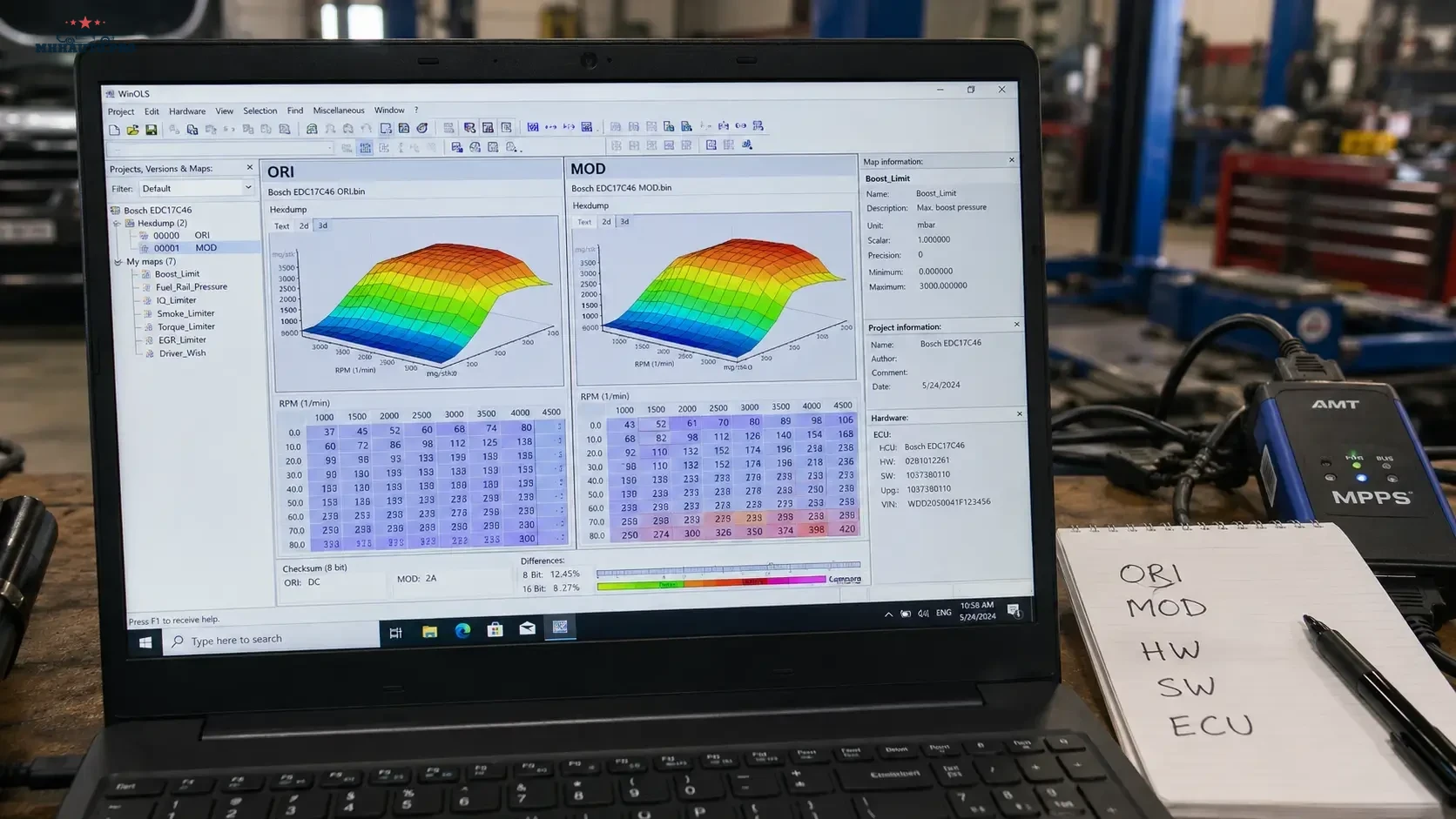
Two files can look related and still be the wrong comparison
Comparing an original file with a modified file sounds straightforward: open both, find the differences and review the changed maps. The difficulty begins when the files do not share the same software base.
An OEM update can move data, replace code sections, change calibration structures or introduce new map variants. A virtual read may come from a matched database file rather than the exact bytes previously stored in the ECU. A file supplied by a customer may already contain undocumented changes.
WinOLS can show differences, connect projects and support the transfer of changes, but the software cannot replace file identification and technical judgment. Before importing anything, the tuner must establish what each file is and whether the comparison is valid.
Define the files before comparing them
Use clear terms inside the project:
- ORI: the verified original or best available baseline for the exact ECU software.
- MOD: a modified version derived from a documented baseline.
- OEM update: a later or different manufacturer software version.
- Virtual original: an original file matched from ECU identification by the tool provider.
- Readback: data physically read from the control unit after a write, where supported.
- Unknown file: any file without enough evidence to classify it confidently.
Do not label a file ORI simply because its name contains “original”. File names are notes, not proof.
Build a file identity sheet
Before opening the comparison view, record the available identification for every file.
| Identity field | File A | File B |
|---|---|---|
| ECU family | Record exact type | Record exact type |
| Hardware number | Value from tool or label | Value from tool or source |
| Software number | Exact value | Exact value |
| Calibration or update number | Where available | Where available |
| Read method | OBD, Bench, Boot or virtual | OBD, Bench, Boot or virtual |
| File size | Recorded in bytes | Recorded in bytes |
| Source | Vehicle, tool database or customer | Vehicle, tool database or customer |
| Known history | Stock, tuned, updated or unknown | Stock, tuned, updated or unknown |
Matching file size is useful, but it does not prove that two files share the same software structure.
Three different comparison jobs
Most WinOLS comparison work falls into one of three situations. Each requires a different level of caution.
1. ORI versus MOD from the same base
This is the cleanest comparison. The MOD was created directly from the ORI and both files have the same structure. Differences should correspond to documented calibration edits and any expected checksum-related changes.
2. One OEM software version versus another
This is not a normal tune comparison. Large areas may differ because the manufacturer changed code, diagnostics, calibration structure or data alignment. Differences should not be interpreted as tuning changes.
3. A modified old version versus a newer OEM version
This is the highest-risk transfer scenario. The old addresses may no longer point to the same maps. Changes should be recreated and validated against the new software structure rather than copied blindly.
Start with a high-level difference review
Before opening individual maps, look at the overall pattern of differences.
Ask:
- Are changes concentrated in a small calibration area?
- Are differences spread across most of the file?
- Do large blocks appear shifted?
- Are code and calibration areas both different?
- Are there repeated difference patterns?
- Does one file contain additional data or padding?
- Are the changes consistent with the file history?
A compact group of map changes may be consistent with a normal calibration edit. Large widespread differences usually require software-version analysis before map-level conclusions are made.
Difference patterns are clues, not proof
| Difference pattern | Possible explanation | Required check |
|---|---|---|
| Small clusters inside known maps | Documented calibration changes | Confirm axes, units and expected function |
| Large continuous regions | OEM software update or different file base | Verify software numbers and code structure |
| Repeated isolated bytes | Checksum, counters, metadata or tool processing | Review protocol and checksum workflow |
| Similar maps at different addresses | Data relocation between software versions | Match by structure, axes and function, not address |
| Differences outside expected calibration areas | Wrong file, update, patch or undocumented modification | Stop transfer until file origin is understood |
No pattern should be treated as a guarantee. Use it to decide what needs closer inspection.
Compare maps, not only addresses
An address is valid only inside its own software structure. When files use different software versions, the same function may be stored at another address or represented differently.
For each map being compared, confirm:
- map dimensions;
- axis values;
- axis order;
- data type;
- byte order;
- factor and offset;
- engineering unit;
- surrounding data structure;
- relationship with associated target and limiter maps.
A table with the same shape is not necessarily the same function. The axes and surrounding logic must also make sense.
Use reference versions carefully
A reference version is useful when reviewing the same project base or when working through a controlled update comparison. It allows the technician to inspect values and differences without constantly switching files.
A clean workflow is:
- Keep the verified original version untouched.
- Create or import the comparison file as a separate version or connected project.
- Confirm project identification before connecting the files.
- Review broad differences first.
- Open known maps and compare structure and values.
- Record which changes are confirmed, uncertain or rejected.
Do not transfer changes automatically merely because WinOLS can identify similar regions.
When automatic import is appropriate
Importing changes is most reliable when the files share the same software base and the original-to-modified relationship is documented.
Automatic or semi-automatic transfer should be treated cautiously when:
- software numbers differ;
- one file is an OEM update;
- one file is a virtual read and the other is a physical read;
- map addresses have moved;
- the source MOD contains undocumented patches;
- file sizes or memory layouts differ;
- the source project uses unverified definitions.
In these situations, recreate the required calibration changes map by map and verify the logic on the target software.
Create a change-transfer worksheet
| Map or function | Source status | Target match | Action |
|---|---|---|---|
| Driver request | Confirmed in source | Axes and units matched | Recreate and review |
| Torque limiter | Confirmed | Multiple target variants found | Investigate before editing |
| Pressure target | Changed in source | Scaling not confirmed | Do not transfer yet |
| Unknown patch | Undocumented | No verified target equivalent | Reject from transfer |
This worksheet prevents undocumented source changes from silently entering the new project.
Do not transfer percentage changes blindly
A common shortcut is to calculate how much a value changed in the old MOD and apply the same percentage to a similar-looking map in the new software. This can be misleading because the manufacturer may have changed the base value, units, limiter relationship or control strategy.
Instead, ask:
- What result was the original edit intended to achieve?
- Does the new software already contain a revised target?
- Which related maps control the same function?
- Are the axes and operating regions equivalent?
- Can the intended result be validated with logs?
Transfer the calibration objective, not merely the old numbers.
Separate calibration changes from patches and metadata
Not every difference is a map edit. Files can also differ because of:
- checksum correction;
- tool-specific processing;
- programming counters;
- software patches;
- version metadata;
- diagnostic configuration;
- unknown previous work.
Unknown changes outside the documented calibration area should be investigated before the file is approved.
Validate the target project after transfer
After recreating or importing changes, perform a full project review:
- check every edited map against its axes;
- review associated targets and limiters;
- confirm units and scaling;
- inspect interpolation and boundary cells;
- check that no unintended regions changed;
- confirm checksum responsibility;
- save a difference report against the target ORI;
- label the final file version clearly;
- prepare the correct recovery file;
- plan a controlled diagnostic and datalogging test.
A successful export does not prove that the calibration logic is correct.
Related WinOLS resources
For definition matching, map-pack validation and scaling checks, read WinOLS A2L/DAMOS & Map Packs. Before writing the completed file, review WinOLS Checksums.
For ECU software-version discussions and real-world file cases, review CarTechnology or MHHAuto. Treat forum information as research and confirm every change inside the actual target project.
File-comparison checklist
- Classify every file as ORI, MOD, OEM update, virtual original or unknown.
- Record ECU hardware and software identification.
- Confirm read method and file size.
- Check whether the files share the same software base.
- Review the overall difference pattern before opening maps.
- Match maps by structure, axes, units and function.
- Do not transfer changes by address alone.
- Reject undocumented patches until they are understood.
- Recreate changes carefully when the target is a different OEM version.
- Save a final difference report against the target original.
- Validate checksum handling and prepare recovery.
FAQ
Can I copy maps from an older OEM software version into a newer one?
Not safely by address alone. Confirm the map function, dimensions, axes, scaling and surrounding strategy in the newer software, then recreate the intended change.
Does matching file size mean the files are compatible?
No. Files with the same size can contain different code, calibration layouts or software versions.
What is the safest ORI versus MOD comparison?
The safest comparison uses a verified original and a documented modified version created directly from that same original base.
Why are there differences outside the maps I edited?
They may be checksum changes, metadata, tool processing, counters or undocumented work. Identify them before approving the file.
Should automatic import be used for an OEM update?
Only with careful validation. When the software base changes, maps may move or change structure. Manual review and controlled recreation are often safer.
WinOLS comparison is not simply a search for different bytes. It is a process of proving file identity, understanding the software relationship and transferring only the calibration decisions that remain valid in the target version.