
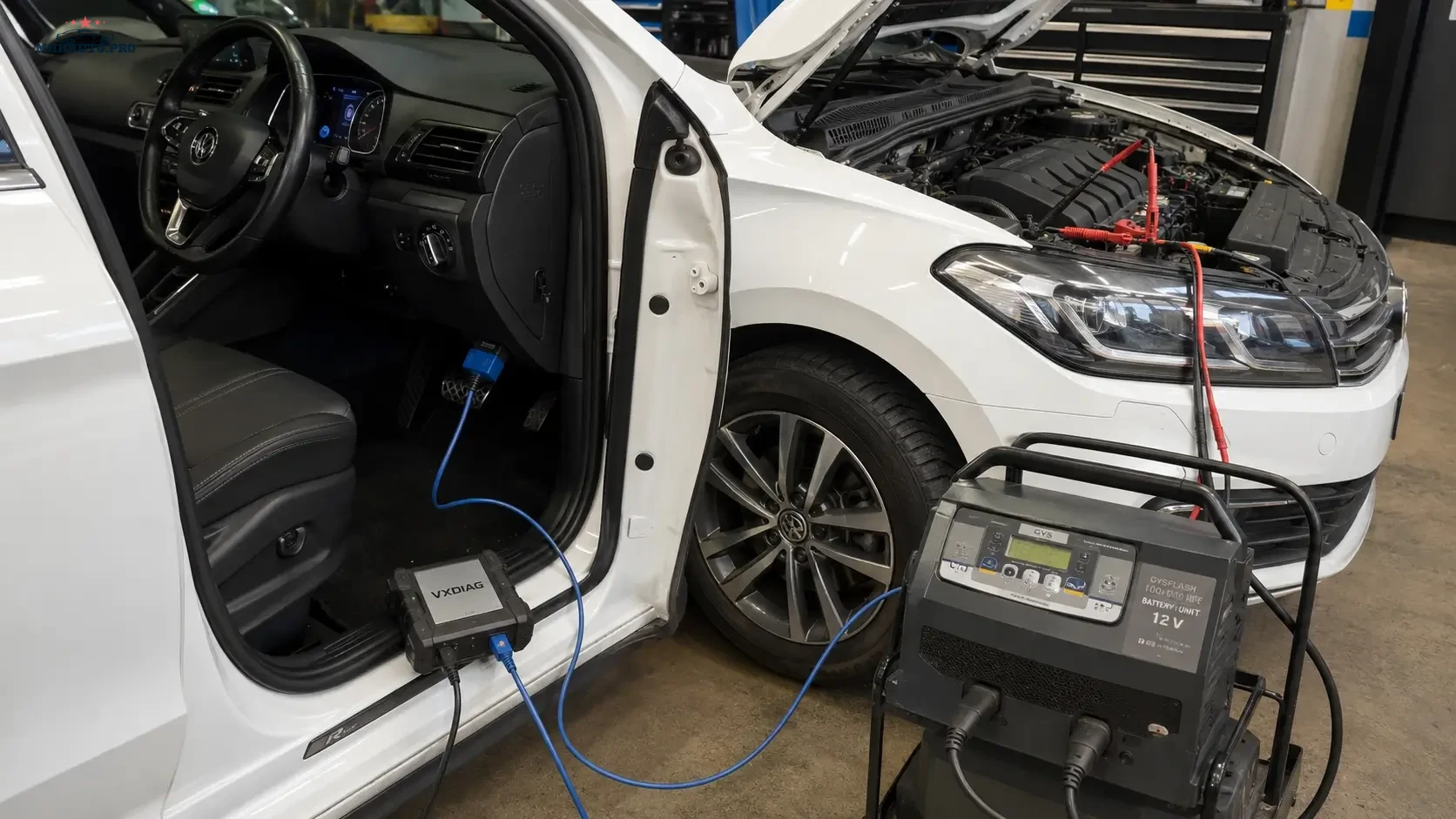
Why modern diagnostics need a setup checklist
Modern vehicle diagnostics can fail before the scan even starts. A weak battery, outdated VCI firmware, wrong cable, blocked Ethernet connection, unsupported CAN-FD network or missing gateway authorization can turn a simple job into wasted time.
DoIP and CAN-FD workflows are less forgiving than older basic OBD communication. The technician must prepare the vehicle, VCI, laptop, network and logs before coding, flashing, gateway access, post-scan, ADAS work or module diagnostics.
This checklist is written for workshops, mobile diagnosticians and technicians who want a stable diagnostic setup before starting work on modern vehicles.
What DoIP and CAN-FD change in the workshop
Older diagnostic work often depended on a standard CAN connection through the OBD port. Many newer vehicles use faster communication, secure gateways, Ethernet-based diagnostics and expanded CAN-FD networks. This means the workshop must pay more attention to interface support, network configuration and power stability.
Key differences include:
- DoIP uses Ethernet-based communication for diagnostic access on supported vehicles.
- CAN-FD supports faster and larger data frames than classic CAN.
- Some modules may require secure gateway authorization before full access.
- Programming and coding sessions need more stable voltage than simple scanning.
- Logs are more important because failures can be caused by network, gateway or tool issues.
1. Confirm that the VCI supports the job
Not every VCI that reads OBD codes is suitable for DoIP, CAN-FD, gateway access, programming or advanced diagnostics. Before connecting to the vehicle, confirm that the interface supports the exact communication type required by the job.
Check the following:
- DoIP support;
- CAN-FD support;
- J2534 or OEM software compatibility if required;
- VCI firmware version;
- driver version on the laptop;
- supported operating system;
- license status for the diagnostic software;
- correct USB, Wi-Fi or Ethernet connection mode;
- known limitations for programming or coding.
A VCI may work for basic scans but fail during programming or gateway functions. Always match the interface to the task, not only to the vehicle brand.
2. Update firmware before the job, not during the job
Firmware updates should be completed before the customer vehicle is connected. Updating VCI firmware during a live job can create delay, driver conflicts or tool restart problems.
Before the vehicle arrives, check:
- VCI firmware is current enough for the diagnostic software;
- the laptop recognizes the VCI correctly;
- the diagnostic software can see the interface;
- test connection works on a known vehicle or test environment;
- you have the correct cables and adapters.
Do not use an untested update path during a paid programming job. Stability matters more than last-minute changes.
3. Prepare Ethernet for DoIP
DoIP diagnostics often rely on Ethernet communication between the vehicle, VCI and laptop. Ethernet problems are common when laptops are configured for office networks, VPNs, firewalls or multiple adapters.
Before starting a DoIP session:
- use a reliable Ethernet cable if the setup requires it;
- check whether the VCI uses direct Ethernet, USB-to-Ethernet or network bridge mode;
- disable unnecessary VPN connections during the session if they interfere;
- make sure firewall rules do not block the diagnostic application;
- avoid switching Wi-Fi networks during the job;
- confirm that the diagnostic software detects the vehicle over DoIP;
- keep laptop power connected.
If the tool cannot find the vehicle over DoIP, do not immediately blame the vehicle. First check cable, network adapter, firewall, VCI mode and software settings.
4. Prepare for CAN-FD communication
CAN-FD support depends on both hardware and software. A vehicle may have CAN-FD networks, but the diagnostic tool must support them correctly. Some adapters look similar but do not support the required data rate or protocol handling.
Check:
- the VCI officially supports CAN-FD;
- the correct OBD cable is used;
- the software version supports the target vehicle;
- the module being tested is on a CAN-FD network;
- there are no loose pins or damaged DLC terminals;
- the vehicle battery is stable before communication starts.
If only some modules are missing from a scan, the issue may be network coverage, gateway state, tool capability or vehicle variant. Save the scan and investigate instead of clearing faults immediately.
5. Use battery support, not just a battery charger
Voltage stability is critical during modern diagnostic work. A basic charger may not hold voltage properly during module wake-up, scans, coding or programming. For longer sessions, use a proper battery support unit with the correct current capacity for the vehicle and job.
Battery preparation should include:
- checking battery condition before the session;
- connecting a support unit when coding, programming or long diagnostics are planned;
- recording voltage before starting;
- keeping doors, lights and accessories under control;
- avoiding unnecessary key cycles;
- monitoring voltage during long operations.
Low voltage can create communication errors, failed programming, false DTCs and unnecessary module replacement.
6. Prepare the vehicle state
Many diagnostic procedures require a specific ignition state, terminal state, parking brake state, gear selector position or hood/door condition. Do not assume every scan starts with the same setup.
Before starting:
- confirm ignition position required by the tool;
- keep the key inside the vehicle if required;
- disable automatic start-stop if relevant;
- avoid opening and closing doors during programming;
- follow tool instructions for terminal changes;
- make sure the vehicle is safe and stable in the bay.
A module that falls asleep during a procedure can look like a communication fault even when the network is healthy.
7. Secure gateway and authorization checks
Some vehicles restrict diagnostic functions through secure gateways or authorization systems. A tool may read basic DTCs but block clearing, coding, actuator tests or adaptations until proper authorization is completed.
Before promising the job, check:
- whether the vehicle uses a secure gateway;
- whether the required function is restricted;
- whether authorized access is available;
- whether customer approval is documented;
- whether the diagnostic software supports the required workflow;
- whether the technician has login credentials or access rights where required.
Do not treat a gateway restriction as a tool failure until authorization and vehicle requirements are confirmed.
8. Save logs before clearing faults
Logs are the evidence of the diagnostic job. Before clearing DTCs, coding modules or disconnecting the battery, save the original scan.
A clean diagnostic record should include:
- vehicle identification;
- date and technician name;
- VCI used;
- software version;
- battery voltage;
- full pre-scan;
- module list;
- communication errors;
- gateway status if relevant;
- post-scan after work is completed.
This is especially important when a vehicle arrives with multiple unrelated faults. The original scan protects the workshop from disputes after repair.
Common setup problems
| Problem | Possible cause | First check |
|---|---|---|
| Tool cannot find vehicle over DoIP | Ethernet, firewall, VCI mode or cable issue | Check network adapter, VCI connection and cable |
| Some modules missing from scan | Gateway, unsupported network or sleeping modules | Check vehicle state, gateway and tool coverage |
| Programming fails | Voltage drop, unstable connection or software issue | Check battery support, cables and logs |
| CAN-FD modules not responding | VCI or cable does not support CAN-FD | Confirm hardware and software support |
| Function blocked | Secure gateway or authorization required | Check gateway requirements and authorized access |
Where forum and repair data help
For real-world discussion about interfaces, diagnostic software behavior, DoIP issues and tool compatibility, review MHHAuto or CarTechnology. For repair procedures, wiring diagrams and technical data during workshop diagnostics, review WorkShopData Cars or WorkShopData Cars and Truck.
DoIP and CAN-FD pre-job checklist
- Confirm the vehicle and job type.
- Confirm VCI support for DoIP and CAN-FD.
- Check VCI firmware and laptop drivers.
- Prepare Ethernet connection if DoIP is required.
- Check firewall, VPN and network adapter settings.
- Use a proper battery support unit.
- Confirm vehicle ignition and terminal state.
- Check gateway authorization requirements.
- Save pre-scan before clearing faults.
- Save post-scan and technician notes after completion.
FAQ
Is DoIP the same as normal OBD diagnostics?
No. DoIP uses Ethernet-based diagnostic communication on supported vehicles. The workshop may need a compatible VCI, correct Ethernet setup and software support.
Why is battery support important during diagnostics?
Modern vehicles can be sensitive to voltage drops. Low voltage can cause communication errors, failed programming and false DTCs.
Can an old VCI work with CAN-FD vehicles?
Only if the VCI hardware and software support CAN-FD. Basic OBD or classic CAN support is not enough for all modern networks.
Why should I save logs before clearing codes?
The original scan shows the condition of the vehicle before work started. It helps with diagnosis, customer reporting and workshop protection.
A stable diagnostic session starts before the scan tool is opened. Prepare the VCI, Ethernet connection, battery support, gateway access and logs first. The better the setup, the fewer false problems appear during the job.